

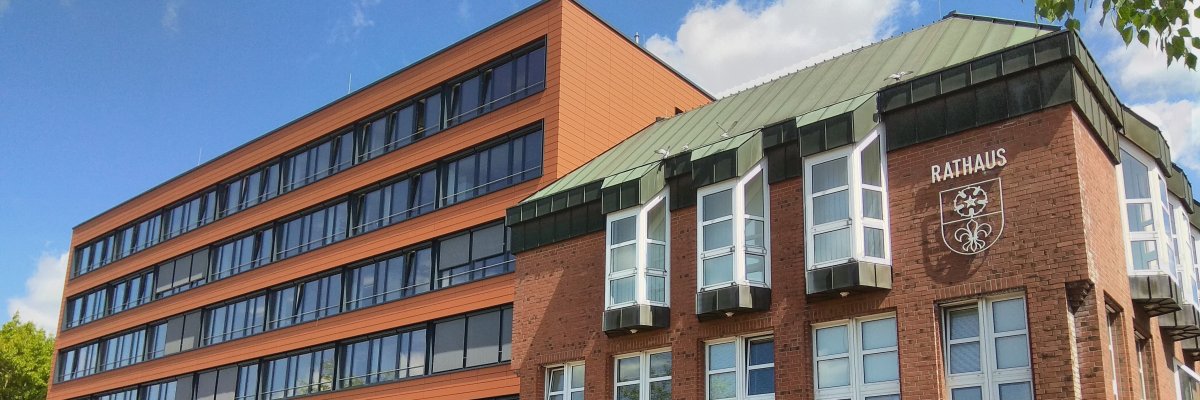

City administration building of the Stadtkevelaer
> Translation notice: This page has been automatically translated with the support of DeepL. Differences from the original German text may occur. Only the German version is legally binding.

digitalisierung & Bürgerservice

Neue Regelungen für Fischereischeine

Die Wallfahrtsstadt Kevelaer baut ihren digitalen Bürgerservice weiter aus. Bürgerinnen und Bürger können verschiedene Leistungen des Einwohnermeldewesens wie beispielsweise Meldebescheinigungen, einfache Melderegisterauskünfte, Selbstauskünfte und Übermittlungssperren jetzt auch online beantragen. Die Angebote sind unabhängig von den Öffnungszeiten des Bürgerbüros über das Serviceportal der Wallfahrtsstadt Kevelaer erreichbar: www.kevelaer.de/serviceportal

Neue Regelungen für Fischereischeine

Seit dem 1. Juli 2026 gelten außerdem neue Regelungen für Fischereischeine. Personen, die ihre Fischerprüfung ab diesem Datum bestanden haben, können den Fischereischein bei der zuständigen Verwaltung oder online über die BundID beantragen. Die Online-Beantragung ist kostengünstiger und ohne Terminvereinbarung möglich.

Wer die Fischerprüfung vor dem 1. Juli 2026 abgelegt hat oder bereits einen Fischereischein besitzt, muss den neuen Fischereischein persönlich bei der zuständigen Stadt oder Gemeinde beantragen. Bereits vor dem 1. Juli 2026 ausgestellte Fischereischeine bleiben jedoch bis zum Ablauf ihrer Gültigkeit gültig. Ein sofortiger Umtausch ist nicht erforderlich.

Der bisherige Jugendfischereischein entfällt. Kinder und Jugendliche von 10 bis einschließlich 15 Jahren dürfen künftig in Begleitung einer Person mit gültigem Fischereischein angeln. Dabei muss ein amtlicher Lichtbildausweis oder ein Schülerausweis mitgeführt werden.

No employees found.

Help with accessibility

  • General

    We endeavor to make our websites accessible. You can find details on this in our accessibility statement. You can send us suggestions for improvement via our feedback form Report accessibility.

  • Font size

    To adjust the font size, please use the following key combinations:

    Larger

    ⌘command
    +

    Smaller

    ⌘command
    –

    Larger

    Ctrl
    +

    Smaller

    Ctrl
    –
  • Keyboard navigation

    Use TAB and SHIFT + TAB to navigate through next/previous links, form elements and buttons.

    Use ENTER to open links and interact with elements.

  • Contrast mode

    Press the following key combination to reduce or increase the contrast:

    Enlarge

    ⌃control
    ⌥option
    ⌘command
    .

    Decrease

    ⌃control
    ⌥option
    ⌘command
    ,
    Note: The shortcuts must be activated in the system settings of the operating system.

    Press the left ALT key + left SHIFT key + PRINT to quickly switch the high contrast mode on or off.

  • Invert colors

    Press the following key combination to switch the color inversion on and off:

    ⌃control
    ⌥option
    ⌘command
    8
    Note: The shortcuts must be activated in the system settings of the operating system.

    First activate the screen magnifier and then switch the color inversion on and off with the following key combinations:

    1. screen magnifier

    +

    2. invert colors

    Ctrl
    Old
    I
  • Screen magnifier

    Press the following key combinations to use the screen magnifier:

    Switch on/off

    ⌥option
    ⌘command
    8

    Enlarge view

    ⌥option
    ⌘command
    =

    Reduce view

    ⌥option
    ⌘command
    –
    Note: The shortcuts must be activated in the system settings of the operating system.

    Switch on / Enlarge view

    +

    Reduce view

    –